Guide

SheepTerm Guide

Thirteen short topics with real screenshots — the same guide as Help ▸ SheepTerm Guide in the app.

01

Home

  1. Click the house at the start of the tab bar, or View ▸ Home (⇧⌘0).
  2. One click picks a host; a double-click connects.
  3. Edit Home picks the widgets — Recent, a group, hosts by type — in 1, 2 or 3 columns.
  4. Add Host, Add Hosts, New Group, Add Credential and Import sit along the top.
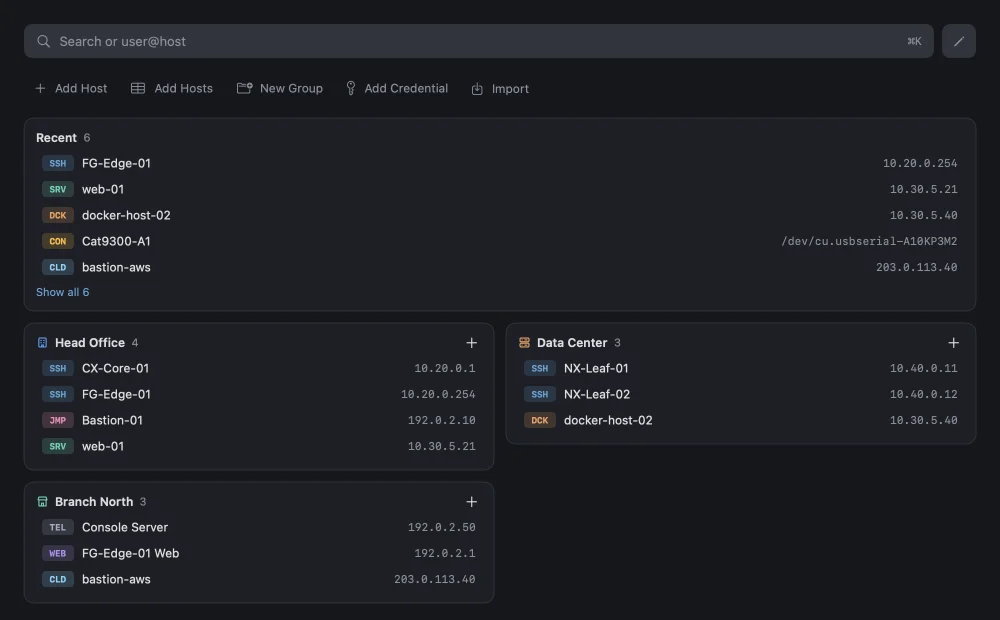
Home: Recent and group widgets with sample hosts

02

Connecting

  1. Quick Connect (⌘K): type user@host and press Return — SSH unless you type telnet://, sftp:// or ping.
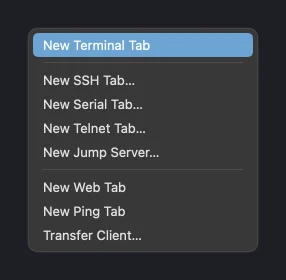
  2. The + in the tab bar opens a terminal, SSH, Serial, Telnet, Web or Ping tab.
  3. Right-click a tab: New Tab, Split with, Reconnect, Duplicate.
  4. Plug in a console cable: the card at the bottom right offers to connect.
The + menu: new Terminal, SSH, Serial, Telnet, Web and Ping tabs

03

Split panes

  1. Drag a host from the sidebar onto the edge of a pane — the side you drop on is where it opens.
  2. Drag a tab onto a pane's edge to join it; drag a pane's header onto the tab bar to give it its own tab.
  3. No drag needed: right-click a host ▸ Open in Split ▸ Right, Below, Left or Above, or a tab ▸ Split with.
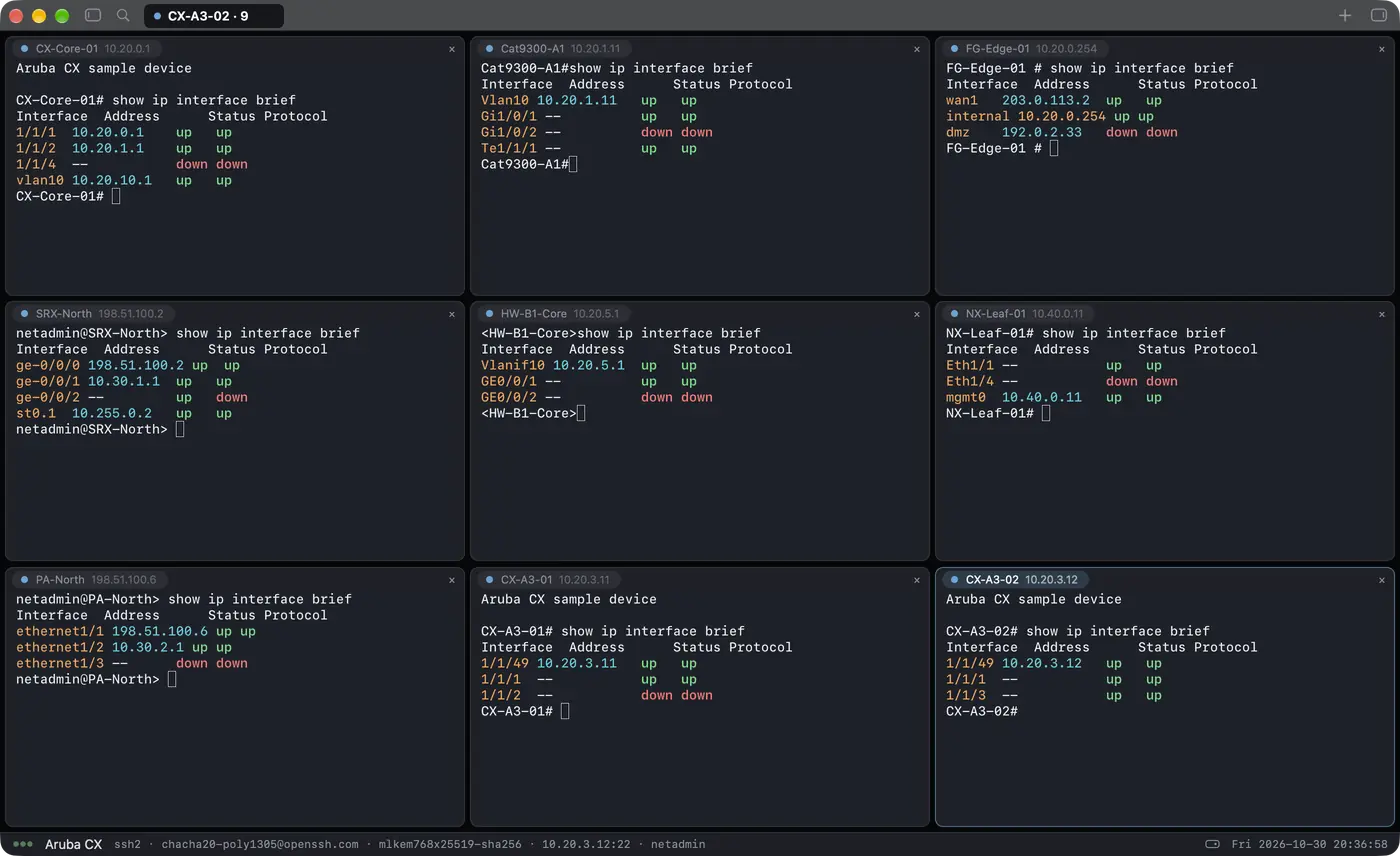
  4. Tabs ▸ Split Right (⌘D) and Split Down (⇧⌘D) split the pane you are in; up to 3 × 3.
A tab split three by three

04

Adding a host

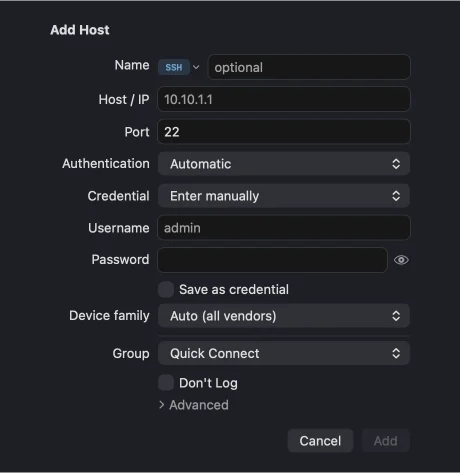
  1. Hosts ▸ Add Host… (⌘N), the ≡ at the bottom of the sidebar, or right-click a group.
  2. Pick the badge in front of the name: SSH, Server, Docker, Cloud or Jump.
  3. Authentication: Automatic, Password, Key or ssh-agent; a saved credential fills in the user.
  4. Consoles are not filed in groups — they stay in Recent.
The Add Host form

05

Adding many hosts

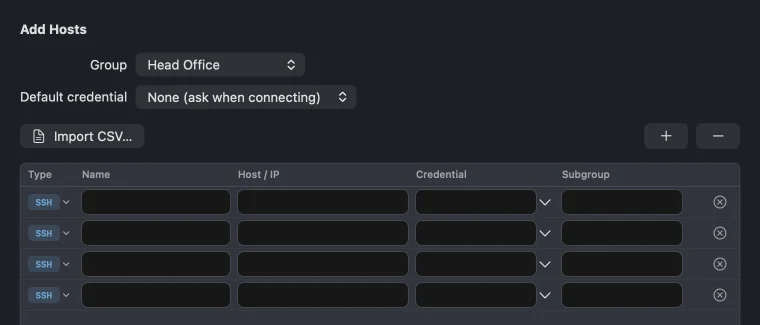
  1. Hosts ▸ Add Hosts… opens a table: type, name, host, credential, subgroup.
  2. Paste a block from a spreadsheet (⌘V) or Import… a CSV, JSON or OpenSSH config file; the Subgroup column files hosts under the group.
  3. Blank rows are skipped; Add Hosts saves the rest into the group picked at the top.
The Add Hosts table

06

Right-click menus

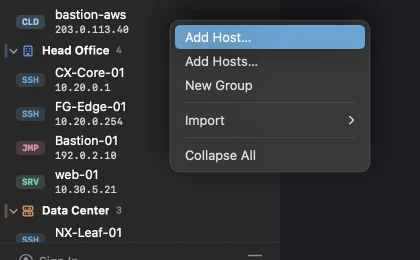
  1. Empty sidebar space: Add Host, Add Hosts, New Group, Import.
  2. A group: Add Host Here, Add Subgroup, Group Icon, Set Credential for Group, Via Jump Server.
  3. A host: Connect, Open in Split, Open File, Ping, Edit Host.
  4. The ≡ at the bottom of the sidebar shows the same list in the same order.
Right-click menu on the sidebar

07

Groups and icons

  1. New Group and Add Subgroup — up to four levels; drag hosts and groups to move them.
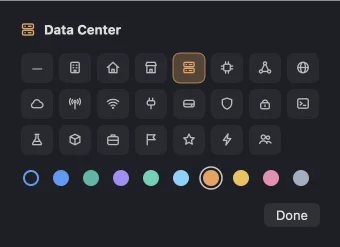
  2. Pick an icon and a colour when you make a group, or later: right-click ▸ Group Icon…
  3. The bar in front of the group follows its colour.
Group icon and colour picker

08

Credentials, keys and certificates

  1. Hosts ▸ Credentials… keeps users, passwords and SSH keys — in the Keychain, never in a file.
  2. Import a key from ~/.ssh or make a new one; add its certificate from your CA.
  3. Pick a credential on a host, or set one for a whole group.
  4. With Sync on, credentials travel end-to-end encrypted.

09

Jump servers

  1. Give a host the Jump badge.
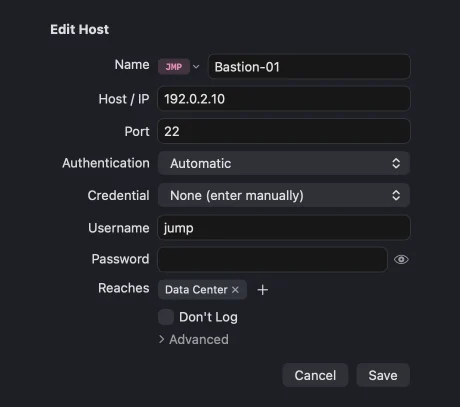
  2. In Reaches, pick the groups behind it — every host in them connects through it.
  3. Reaches ▸ New Host… adds a host behind it straight away.
  4. One hop only: a host that goes through a jump server cannot be one.
A jump host and the groups it reaches

10

Session logs

  1. Settings ▸ Log Sessions to File; a host can opt out with Don't Log.
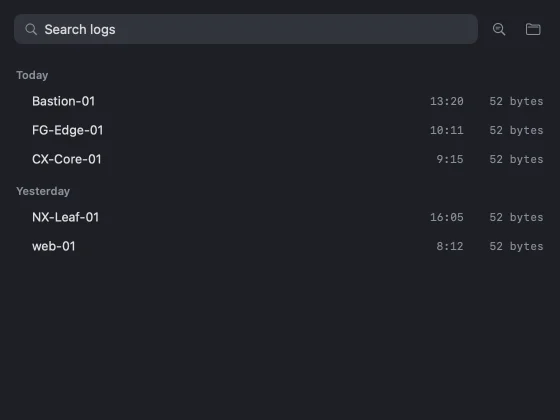
  2. File ▸ Logs… lists every log by day; a green dot = still being written.
  3. Double-click opens a log as a read-only tab; right-click for Finder, Copy Path or Trash.
  4. File ▸ Search Logs… (⇧⌘F) finds text inside every log.
Session logs by day

11

File transfer

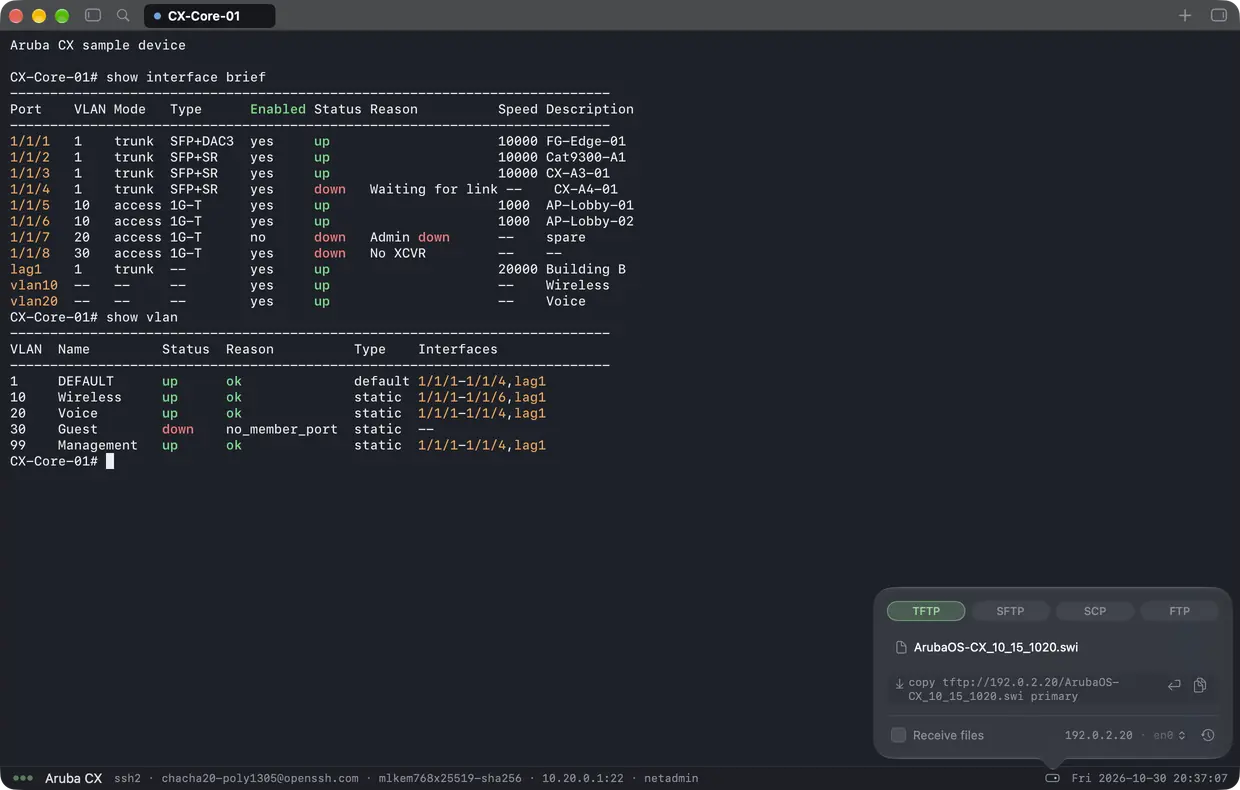
  1. The glyph left of the clock opens the File Server: TFTP, SFTP, SCP or FTP on this Mac.
  2. Every server starts off, and stops by itself after 10 idle minutes.
  3. Open File… on an SSH host or tab browses it in a Files tab.
The File Server popover

12

Shape the app

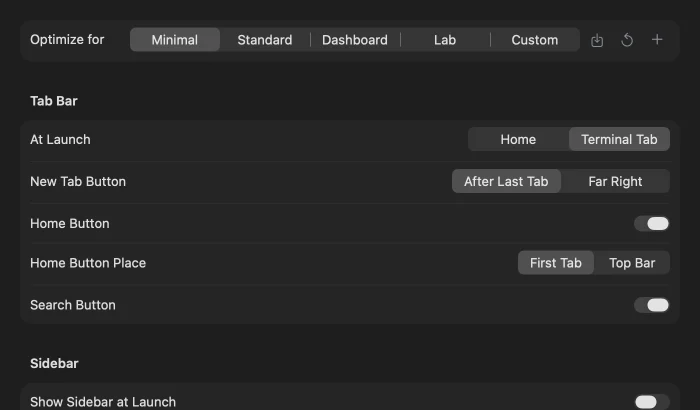
  1. View ▸ Optimize… opens Settings ▸ Optimization.
  2. Pick Minimal, Standard or Dashboard, or switch things off one by one.
  3. Changed a preset? Save keeps it, Restore Default brings it back, + saves a new one.
  4. A feature switched off only leaves the menus — nothing saved is touched.
Settings ▸ Optimization presets

13

Keyboard shortcuts

Quick Connect⌘K
New Terminal Tab⌘T
New SSH Tab⇧⌘N
Add Host⌘N
Home⇧⌘0
Toggle Sidebar⌘0
Find⌘F
Search Logs⇧⌘F
Send Break⌃⌥B